Fix iPhone Battery Draining After iOS Update: 13 Proven Methods
Updated: Jan 25
Apple releases a new iOS update almost every year and users wait for a new iOS update with utmost excitement. But their excitement suddenly end due to their iPhone’s battery seems to drain very fast. If your iPhone battery draining after iOS update, you’re not alone. Many users experience abnormal battery drain right after installing new software. But don’t worry, this problem is not permanent, you can easily extend your battery power with simple tweaks as explained in this article.

Why Does iPhone Battery Drain Faster After an iOS Update?
Before applying the fixes, it is important to understand why your iPhone battery is draining so fast so that you could restore battery life in future. Here are the most common causes:
1. Background System Re-Indexing
After any major iOS update, your iPhone executes various internal hidden tasks such as:
Photo indexing
Spotlight indexing
App re-optimization
Syncing iCloud
These tasks consume more battery while completing for a whole day when you install iOS update.
2. Newly introduced iPhone Features
Sometimes Apple introduces new features that run continuously in the background and accordingly consumes more power like new widgets, location services, or system animations.
3. Apps Not Optimized with New iOS
If your frequently used apps haven’t been configured with the latest iOS version, they may use extreme CPU power or run background tasks wrongly.
4. Battery Health Weakening
If your battery health is already below 80%, any major update can deteriorate battery performance.
5. System Bugs or Glitches
Occasionally, iOS updates come with bugs that cause:
iPhone overheating
Speedy battery drain
Stuck background tasks
These unexpected events consume a lot of battery. Often, Apple fixes these issues in minor updates.
Also Read : Fix iPhone Apps Crashing After Update
How to Fix iPhone Battery Draining After iOS Update
After updating latest iOS, your iPhone starts various processes within system which significantly increase the battery usage. If you find battery draining has been slightly increased, wait 1–2 days.
However, if your battery drops 20–30% per hour, go through the following methods.
1. Check Battery Usage & Identify Problem Apps
Go to iPhone Settings.
Choose Battery option.
Go to the section “Battery Usage by App”

Look for apps that show:
Unusually high background activity.
Sudden spikes in usage after the iOS update.
Apps consuming power even when not in use.
What to do if you find one:
Force stop App
Update it from the App Store.
Remove and re-install App.
This alone workaround has already fixed the battery drain issue for many users.
2. Update All Your Apps
Outdated apps may not be configured with new iOS basics and accordingly battery drain issue arises in most of the iPhone. So, you must update all your App installed in your iPhone.
Launch App Store.
Tap on Profile icon from top right corner.
Choose Update all.

Background battery drain issue will automatically be reduced after updating Apps on your iPhone.
3. Restart Your iPhone
Sometimes a simple reboot can resolve various major or minor issues of your device. So, restart your iPhone.
Wait 15-30 seconds, then turn it back on. Check battery draining status after sometimes.
4. Disable Background App Refresh
This feature allows apps to automatic refresh in the background which is necessary for each App. You can easily reduce iPhone battery drain issue by disabling this feature.
Go to Settings.
Tap on General.
Look for Background App Refresh.

Disable it.

If you want to disable this feature only for high-usage apps, choose one-by-one and turn off.
5. Turn Off Unnecessary Location Services
Location services can drain the battery fast, so you should disable this feature for specific items like:
Open Settings.
Go to Privacy.
Look for Location Services.
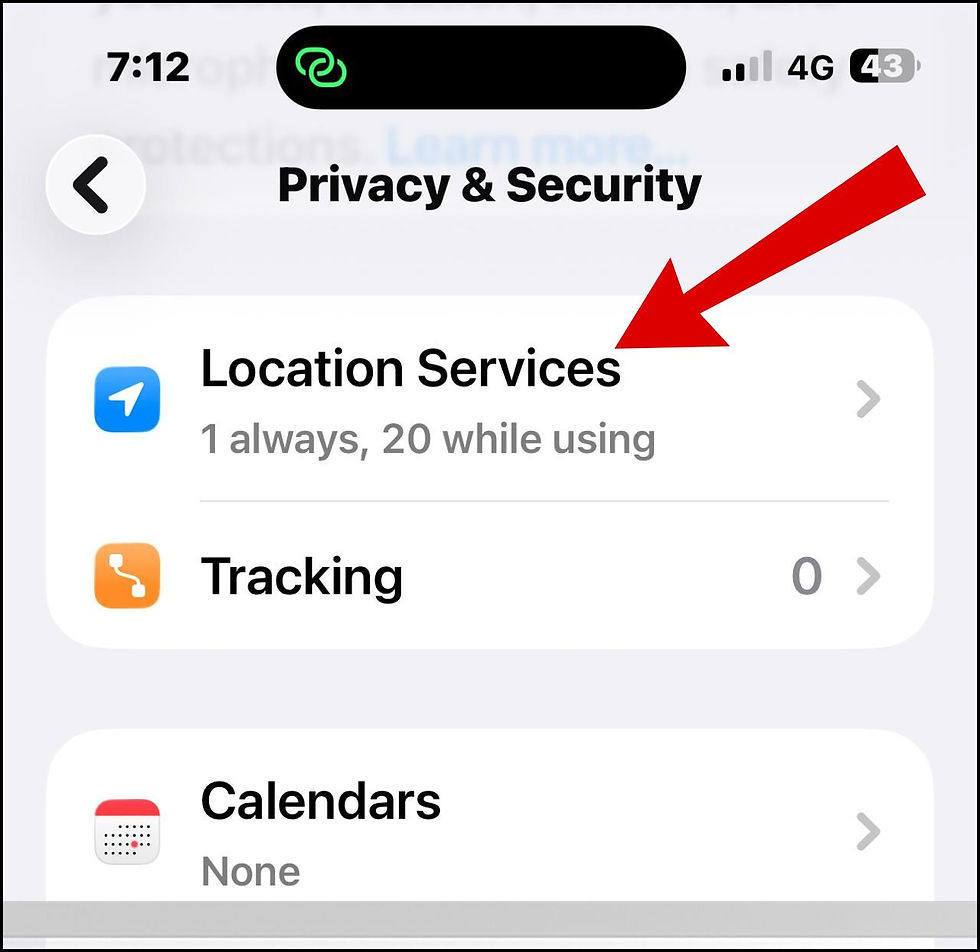
(a) Turn off location services for unused / rarely used apps, such as:
Social media apps
Shopping apps
Games
(b) Also for system services, disable:
Significant Locations
Location-based alerts
Location-based suggestions

6. Change Optimize Battery Charging Settings
Turn on Optimized Battery Charging to decrease battery consumption. Optimized Battery Charging is designed to improve iPhone battery health by delaying charging past 80%, especially overnight.
How to Turn Off Optimized Battery Charging Temporarily:
Go to iPhone Settings.
Choose Battery.
Here go to Battery Health.
Make the check against option Optimized Battery Charging.

7. Change Display Settings
The display screen is one of the most power consumer. You can save more battery by changing iPhone display settings (Most reliable battery saver). I have already applied this trick and saved a lot of battery usages.
A. Lower Brightness
Use auto-brightness or reduce it manually.
B. Lower Auto-Lock Time
Open Settings.
Go to Display & Brightness.
Look for Auto-Lock.
Set auto lock time to 30 seconds.

C. Disable Always-On Display (AOD)
This feature is applicable only for iPhone 14 Pro or newer. Turn of Always on display:
Settings → Display & Brightness → Always On → Off

8. Disable Unused / Rarely used System Features
A. Haptic Keyboard Feedback
Settings → Sound & Haptics → Keyboard Feedback → Haptic Off

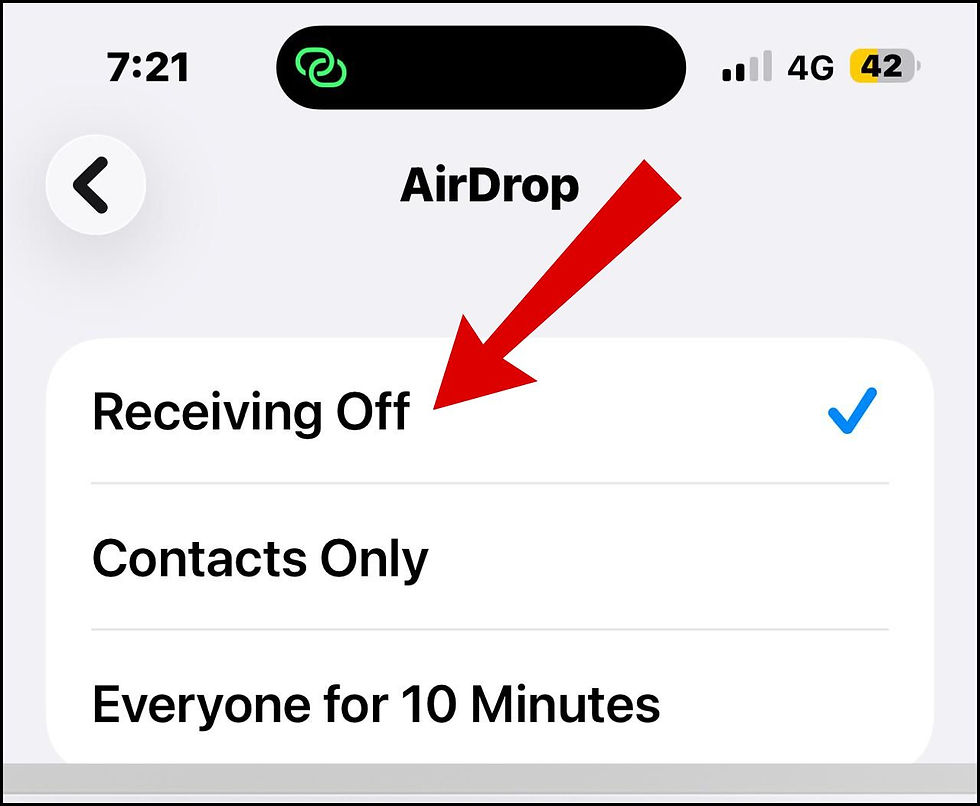
B. AirDrop (when not needed)
Settings → General → AirDrop → Receiving Off
C. Siri Suggestions
Settings → Siri & Search → Turn off suggestions you don’t use.

9. Don’t miss iOS Bug Fix Updates
The first version of any new iOS update having bugs which is addressed in its consequent update such as 18.0.1, 26.0.1 etc. So you must install such minor iOS update.
10. Reset Network Settings
Check whether your network connection like WiFi, LTE, or Bluetooth affected after an update, it can increase battery usage for various features.
Launch iPhone Settings.
Go to General.
Choose Transfer or Reset iPhone.
Again, tap on Reset.
Choose Reset Network Settings.

11. Use Low Power Mode
Low Power Mode reduces background activity, animations, and system usage without affecting other core functionality, enable it.
Go to Settings.
Choose Battery and then Power Mode.
Turn on Low Power Mode.

12. Force Restart Your iPhone
A force restart dissolves deeper software glitches.
How to Force Restart iPhone
iPhone 8, X, 11, 12, 13, 14, 15, 16 and newer
Press Volume Up button and quick release.
Press Volume Down button and quick release.
Now Press and HOLD the Side button until the Apple logo appears on iPhone screen.
iPhone 7 / 7 Plus
Hold Volume Down and Power button simultaneously until the Apple logo appears.
iPhone 6 and older
Press and Hold Home and Power button until you see the Apple logo on screen.
This won’t erase your data; it simply refreshes the system.
13. Reset All Settings
If none of the above workaround works, reset all settings but prefer to keep your data.
Open Settings.
Tap on General.
Choose Transfer or Reset iPhone.
Again tap on Reset.
Choose Reset All Settings.

Final Thoughts
Battery drain issues after an iOS update are treated as common which is easy to fix by simple tweak and customized settings. By optimizing settings, updating your apps, and giving your iPhone time to re-adjust, you can considerably improve battery performance.
FAQ
How long should I wait before worrying about battery drain?
Consider 24–48 hours. If the drain continues, start troubleshooting steps.
Does Low Power Mode help?
Yes. It temporarily reduces background tasks, mail fetch, animations, and automatic downloads.
Will Apple replace my battery?
Your iPhone must cover or qualify under warranty or AppleCare.


Comments