Fix iPhone Apps Crashing After Update : 9 Proven Solution
iPhone Apps crashing after update are one of the most common problems that all users have to face occasionally. You update your iPhone for better performance, expecting new features, and also for security improvements. But after an iOS update, some Apps suddenly crashes, freezes or iPhone app not working properly.

Causes of iPhone Apps Crash After an Update
Before proceeding to solutions as explained in this tutorial, we will have to understand why this issue occurs. These are the possible reasons behind this issue :
1. App Compatibility Issues
After an iOS update, some apps may not yet be fully optimized with the new iOS version. Developers often need time to release updates that ensure compatibility with the latest iOS update.

2. Software Bugs in iOS Updates
Even official Apple updates having bugs. These bugs may affect memory management, background processes, or system permissions, causing apps to crash. However, the issue is addressed in next iOS release.
3. Insufficient Storage Space
iOS updates need extra storage space to work properly. If your iPhone is low on space, apps may not have enough resources to run efficiently.
4. Corrupted App Data
While the update is in process, there is a possibility of app data become corrupted, leading to crashes or startup issues.
5. Outdated Apps
If you have not updated your App since long time, it may not support the latest iOS version.
Also Read : Fix iPhone Battery Draining After iOS Update
How to Fix iPhone Apps Crashing After Update
If you are also facing iPhone apps keep crashing issue just after an iOS update, don’t worry. In most cases, this issue may be fixed with simple troubleshooting steps. This inclusive guide will deliver step-by-step solutions to fix the problem easily and quickly arises in 2026.
1. Restart Your iPhone
A simple reboot your iPhone clears temporary bugs or software issues instantly. This resets App in the background, often the app work again.
How to restart iPhone:
Hold Side button, slide to power off.
Wait few seconds.
Turn it back on.

2. Update the Affected App
Developers occasionally release app updates just after iOS updates to fix app crashes and other app related bugs.
How to Update iPhone App
Open the App Store.

Tap on your profile icon from top right corner.

Look for the app which having troubles in opening.
If any update available for that particular app, download and install it.
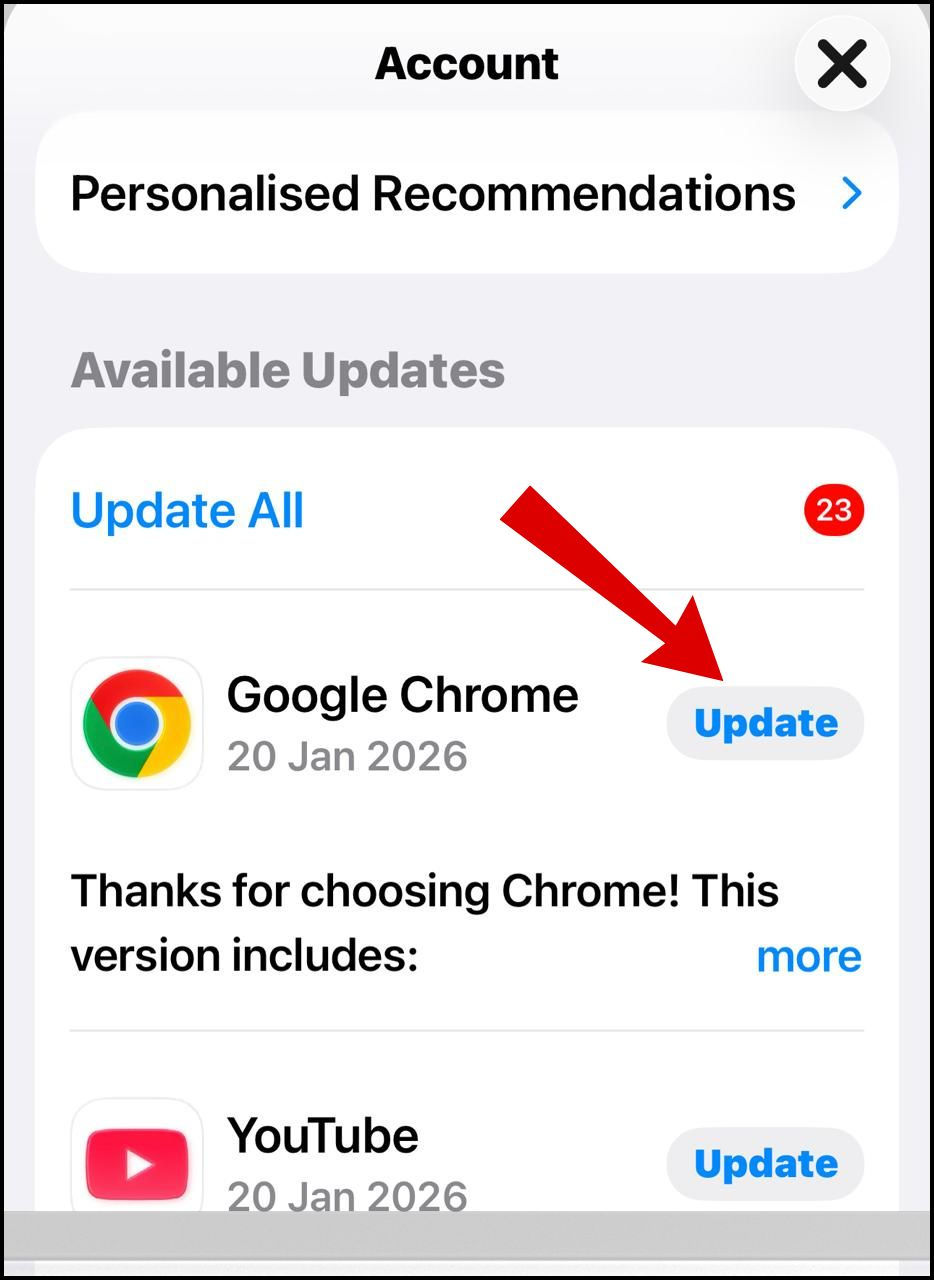
If multiple apps are crashing, update all apps at once to ensure compatibility.
3. Check for iOS Update
Apple regularly releases minor updates to fix bugs found in earlier versions. If the crashes started after a recent iOS update, a newer patch may already be available.
Follow these Steps:
Go to Settings.
Tap General.
Select Software Update.
Download and install any available update.
4. Free Up iPhone Storage Space
Low storage can lead apps to crash, freeze, or fail to open. You must check your storage and if you find low space, release at least 5-10 GB space to run app smoothly.
How to Check Storage:
Go to Settings.
Tap General.
Select iPhone Storage.
Ways to Free Up Space:
1. Delete unused apps.
2. Remove old photos and videos.
3. Clear Safari cache.
Go to settings.
Scroll down and tap Apps.
Look for Safari, tap on it.
Choose Clear History and Browser data.

4. Offload unused apps.
Go to Settings.
Here choose General.
Go to iPhone Storage.
Select the option Offload Unused Apps.

When you choose offload an app, iOS eliminates the app itself but keeps your data and documents safe. When you will reinstall the app, all your date will be restored.
5. Force Close and Re-launch the App
If a specific app keeps crashing, force closing it may help. It refreshes the app’s session and clears temporary problems.
Swipe up from the bottom.
Find the app.
Swipe it up to close.
Reopen the app.
6. Reset All Settings
Reset settings may fix system-level problems without deleting personal data. This resets Wi-Fi passwords, display settings, and permissions, but keeps your data safe.
Go to Settings.
Tap General.
Select Transfer or Reset iPhone.
Again, Tap Reset.
Choose Reset All Settings.

7. Check App Permissions
After an update, some app permissions may be changed or disabled automatically and due to permission issue, app crashing issue starts.
Go to Settings.
Tap on Apps.

Look for the problematic app.
Check permissions such as Camera, Microphone, Location, etc.
Enable all required permissions.

8. Disable Background App Refresh
Background App Refresh can cause crashes on older iPhones or after updates.
Go to Settings.
Choose General.
Select Background App Refresh.
Turn it Off or limit it to Wi-Fi only.
This reduces system strain and improves stability.
9. Uninstall and Reinstall the Crashing App
If updating doesn’t work, reinstalling the app can fix corrupted files.
Press and hold the app icon.
Tap Remove App.

Restart your iPhone.
Reinstall the app from the App Store.
How to Stop Apps from Crashing After Future iOS Updates
You can stop apps from crashing after iOS update by following under mentioned tips.
Best Practices:
Always back up your iPhone before updating.
Update apps on regular basis.
Keep enough storage space available while updating iPhone.
Wait a few days before installing major iOS updates.
Conclusion
If your iPhone apps are crashing just after an update, it doesn’t mean your device is finished. In most cases, the issue is temporary and easily fixable with next release of updates, storage cleanup, or reinstalling apps.
By following the steps outlined in this guide, you can restore your iPhone’s performance and prevent future crashes. Keep your apps updated, maintain enough storage, and always back up before major updates to ensure a smooth iOS experience.
FAQ
Will resetting my iPhone delete my data?
Resetting all settings doesn't delete data, but you must keep a full backup of your iPhone before resetting all settings.
How long do developers take to fix app crashes?
Most major apps release updates within a few days of a new iOS version.
Do iPhone app crashes mean my phone is damaged?
No. App crashes do not mean your iPhone is damaged. In most cases, the issue is software-related and caused by an iOS update, app bugs, or low storage.
Should I contact Apple Support if apps keep crashing?
Yes. If multiple apps continue crashing after trying all fixes, contact Apple Support or visit an Apple Store.


Comments