Fix iPhone Camera Not Working : 15 Proven Solution
Updated: Jan 25
iPhone camera not working is a common problem which almost every user has to face occasionally. Whether the screen is black, the camera freezes, blurry captured photos, or the camera app not opening at all. But don’t worry, all these glitches are totally fixable at home and there is no need to expense more or go anywhere.

What are all the iPhone Camera issues
These are the common iPhone camera problems which users frequent report:
Camera showing black screen
Front or back camera failed to switch
iPhone Camera app crashing
Camera flash not working properly
"Cannot Take Photo" Camera Error
Third-party apps can’t access the camera
How to Fix iPhone Camera Not Working
In this guide, we’ll walk through every possible way to fix an iPhone camera not working for all models of iPhone including iPhone 11, 12, 13, 14, 15, 16 and the latest iPhone 17.
1. Restart Your iPhone
Sometimes a simple reboot can resolve various major or minor issues of your device. So, restart your iPhone.
Wait 15-30 seconds, then turn it back on. Check battery draining status after sometimes.
2. Re-launch Camera App
Sometimes the app itself is the issue, not the camera hardware.
How to force close Camera:
Swipe up from the bottom and pause (or double-tap Home on older models).
Swipe the Camera app up to close it.
Reopen the app.
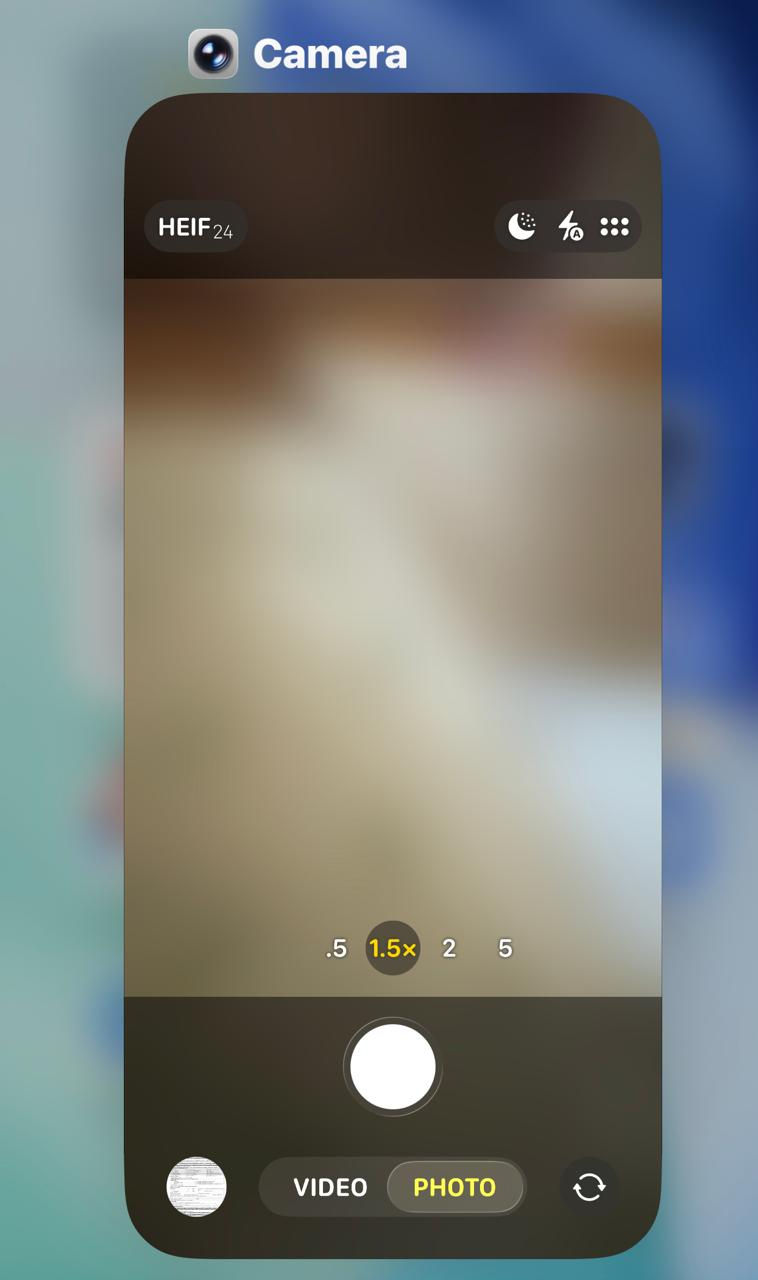
Try switching between photo, video, portrait, and front camera modes to see if the issue resolves.
3. Check for latest iOS Updates
Apple regularly releases updates to fix camera bugs, especially after major iOS releases such as iOS 18, iOS 26.
To update:
Settings → General → Software Update

If an update is available, install it and restart your device.
4. Switch Between Front and Rear Camera
If one lens is having issues, switching cameras can reset the camera session.
Tap the camera-swap icon in the camera app, then switch back.This can fix black screen issues where only one camera is affected.

5. Remove Camera Lens Protector
Damaged camera lens protector may harm lens which causes blurry photo, You must remove or change camera lens protector as a onetime measure.
6. Clean Camera Lens Properly
Clean your iPhone lens carefully with:
A microfiber cloth
Lens-cleaning solution (optional)
Avoid shirts, paper towels, or tissues because they often scratch the glass.
7. Ensure Camera Permissions for Apps
If the iPhone camera is working only for the Camera app but not supporting apps such as Instagram, Snapchat, TikTok, or WhatsApp, your camera permissions may be blocked.
Enable camera access:
Open iPhone Settings.
Tap on Privacy & Security.

Here choose Camera.

Turn on the apps you want to use.

8. Turn Off VoiceOver
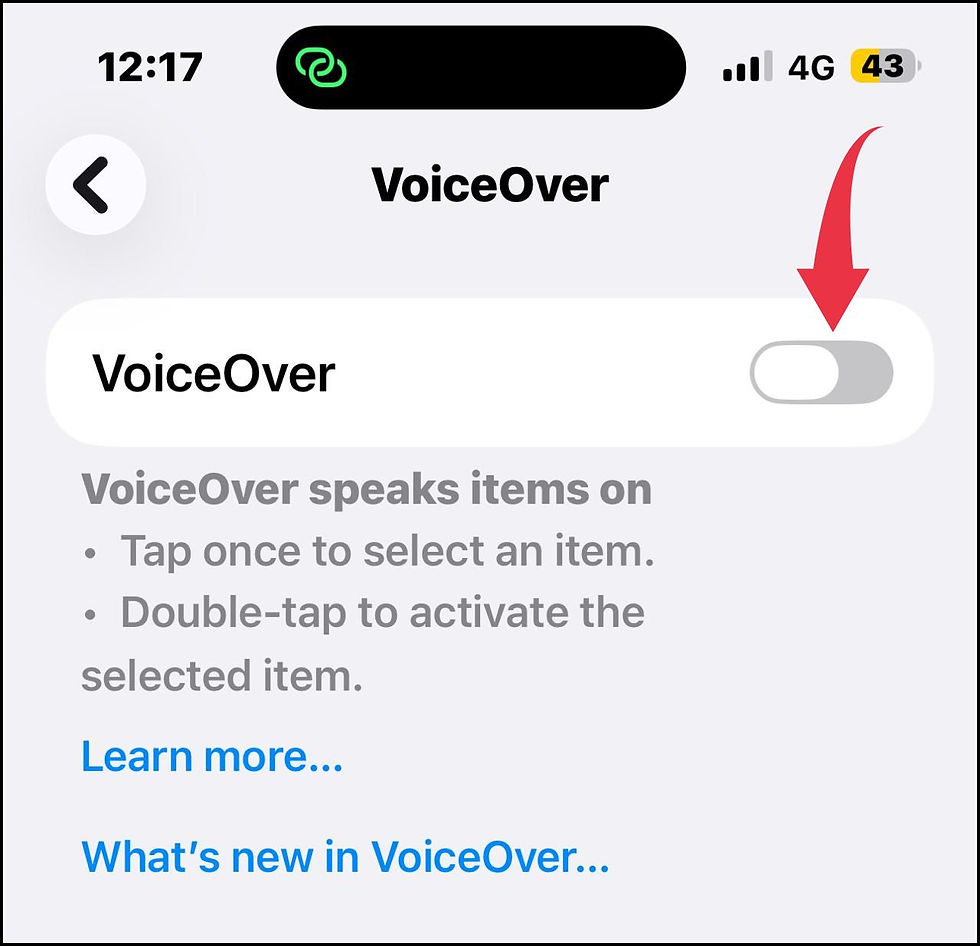
Some users have reported the camera freezes when VoiceOver is active.
Follow these steps to turn off VoiceOver:
Go to iPhone Settings.
Tap on Accessibility

Tap on VoiceOver

Toggle it off and relaunch the Camera app.
9. Reset All Settings
Any wrong settings of iPhone may be a cause of Camera not working properly. In this case, you should apply this method. Don’t worry, your iPhone data will safe.
Open Settings.
Tap on General.

Choose Transfer or Reset iPhone.

Again tap on Reset.

Choose Reset All Settings.

It can fix deep software bugs affecting the camera.
10. Free Up Storage Space
If your iPhone is almost full, the camera may prevent to take photos or record video.
Check your storage:
Settings → General → iPhone Storage
If you find storage is nearly full, try deleting:
Old photos and videos
Bulky apps or games
Downloads in streaming apps (Netflix, Spotify)
Releasing 1–2 GB extra space can help.
11. Turn Off “Macro Control” or “View Outside the Frame”
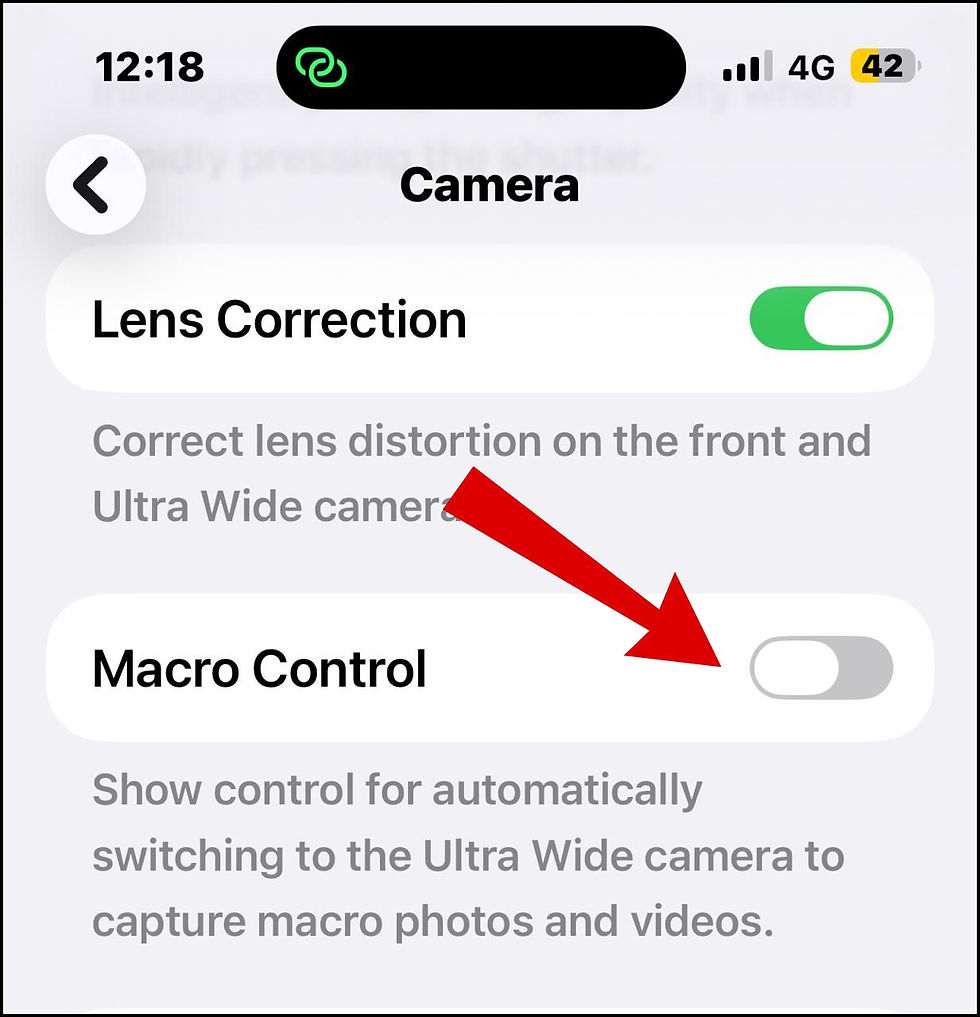
Newly released iPhones switch lenses automatically, and sometimes this raise flickering or blurry photo issues. If you disable Macro control and View outside the frame option, you will get rid of blurry iPhone photo.
To disable Macro Control, go to these steps:
Settings → Camera

Choose Macro Control
To disable, View outside the frame option, go to these steps:
Settings → Camera → Photos Capture Outside the Frame

Test the camera again.
12. Check if the issue is Overheating of iPhone
If your iPhone gets overheat due to various reasons, iPhones automatically disable or limit the camera features.
These include:
Flash disabled
Camera app slow or frozen
Brightness automatically low
The best way to get rid of this effect is let your phone cool for 10–15 minutes, then relaunch camera app again.
13. Test the Camera in Another App
Some users have complaint that iPhone camera is not working only in certain apps. In such case check camera in various social media apps whether working or not. If your camera is working in apps but not in camera app, it means your camera itself is faulty. Try update your device or just a simple restart your iPhone.
14. Reset Location & Privacy Settings
Go to Settings.
Tap on General.
Choose Transfer or Reset iPhone.
Again, tap on Reset.
Choose Reset Location & Privacy Settings.

When you launch the camera, you’ll be asked to re-grant permissions.
15. Turn Off Low Power Mode
Low Power Mode disable certain functions like high-resolution photos and video.
Disable Low Power Mode:
Settings → Battery

Low Power Mode (toggle off)

Precautionary Measure to avoid iPhone Camera Problems
Your iPhone camera will function properly, if you keep some important points in your mind:
Keep camera lens clean and always use a high-quality lens cover.
Keep your iPhone up to date with latest iOS update.
Avoid exposing the camera to magnets or excessive heat.
Clean your lens weekly
Avoid dropping or placing your phone on vibrating surfaces
Final Thoughts
Although camera is one of the important features of every mobile phone. But like any technology, it may face issues. Basically, iPhone camera not working problem is software-related and easy to fix at home. If none of the above-mentioned methods work, you need to take professional support or visit nearby Apple repair shop.
FAQ
Why is my iPhone camera blurry?
A dirty lens or focus glitch is the most common cause. Clean the lens with a soft cloth, tap the screen to refocus, and remove any case that might block the lens.
Why is Portrait mode not working?
Portrait Mode requires proper distance and lighting. Stand 2–8 feet from the objects, move to better lighting, and try the rear camera if the front struggles.
When should I contact Apple Support?
If the camera shows damage, shakes constantly, displays error messages, or none of the fixes help, it’s best to reach out to Apple Support or visit an Apple Store.


Comments