Fix iPhone Wi-Fi Not Connecting : 12 Proven Solutions
Updated: Jan 25
iPhone Wi-Fi not connecting, keep disconnecting automatically, randomly drops Wi-Fi signal, these are the most common issue for every iPhone user which are more frustrating than other iPhone issues in 2026. When you’re streaming, browsing, or trying to work and sudden Wi-Fi connection stop, it’s definitely a major problem. Whether the problem started after an iOS update, only disconnects on certain networks, or randomly dropping, most Wi-Fi connection issues are easily fixable.

Reason behind iPhone Won’t Connect to Wi-Fi
Before proceeding to the fixes, we must know what might be behind the WiFi problem. Understanding the possible reason makes troubleshooting much easier.
Some of the most common causes include:
Weak or unstable Wi-Fi signal.
Router problems or outdated router firmware.
iPhone software problems.
Improper network settings.
VPN or security apps restrictions or interfering.
iOS bugs after an update.
Network congestion.
Also Read : iPhone Not Detecting SIM ? Fix No Service Error Fast
How to Fix iPhone Wi-Fi Not Connecting or Keeps Disconnecting
In this guide, we’ll walk you through various reliable and possible solution, from quick fixes to deeper troubleshooting steps.
1. Ensure Few Basic requirements
These are the basic requirements; you must check because it’s simple but most important.
Is your Wi-Fi turned on?
Go to: Settings > Wi-Fi > ensure it’s turned ON.

Is your wifi router close to your device?
It is necessary to stand near the router and see if the connection improves.
2. Turn Airplane Mode On and Off
Turning airplane mode ON and again Off will refresh your connection on iPhone.
Swipe down from top right corner to Open Control Center.
Tap the Airplane Mode icon.

Wait 10-15 seconds.
Again, Turn off Airplane Mode.
This simple tricks fixes Wi-Fi issues for many users within seconds.
3. Restart Your iPhone
A simple reboot your iPhone clears temporary bugs or software issues instantly. This resets Wi-Fi drivers in the background, often making the connection re-establish again.
How to restart iPhone:
iPhone with Face ID: Hold Side button, slide to power off.

Wait few seconds.
Turn it back on.
4. Restart Your Router or Modem
If your iPhone disconnects and re-connects to other Wi-Fi networks without issues, the issue is likely the router. Most routers require a refresh every once in a while, especially if many devices are connected with same router.
To restart Router:
Unplug your router.
Wait at least 15–20 seconds.
Plug it back in.
5. Forget and Reconnect to the Wi-Fi Network
Sometimes saved Wi-Fi data gets corrupted and accordingly your iPhone may keep disconnecting frequently. In this situation, forgot network will definitely work.
How to forget a network:
Open iPhone Settings.
Go to Wi-Fi.
Tap the (i) next to your network.
Select Forget This Network.
Reconnect by selecting the network and entering the password.
6. Check for iOS Updates
Sometimes Wi-Fi issues arise after installing iOS updates. But Apple addresses such issue in next release of quick update patches.
Go to: Settings > General > Software Update.

Install any available update.
7. Turn Off VPN
Sometimes VPNs can cause Slow Wi-fi, frequent disconnect network connections, failed to join public wifi network etc.
Open iPhone Settings.
Tap on General settings.

Choose VPN & Device Management.
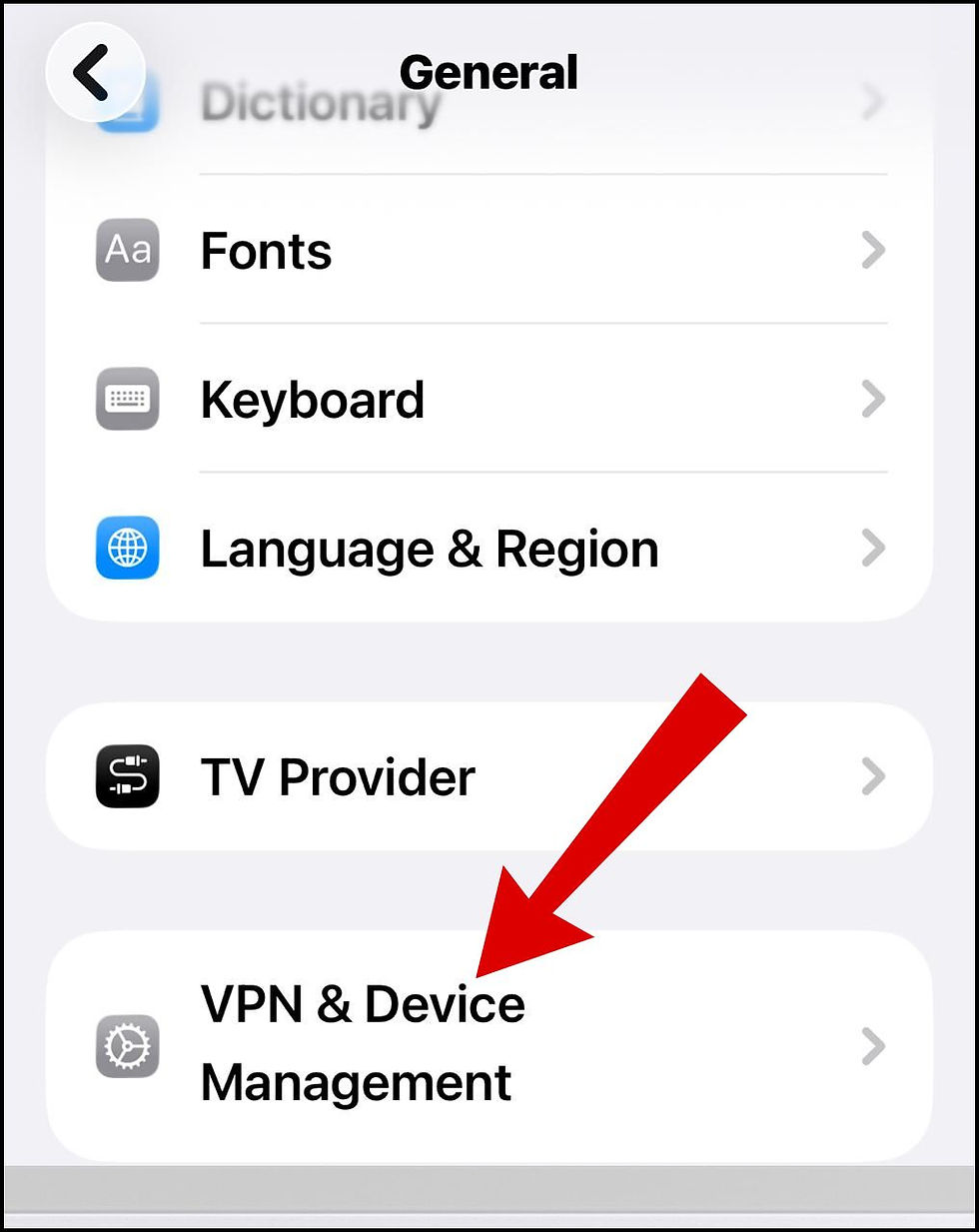
Look for VPN. If you have added any VPN connection, Disconnect it.

8. Reset Network Settings
This is the effective way to fix any network related issue of any devices. After resetting network, you will lose saved Wi-Fi networks, Bluetooth pairings, VPN profiles, and APN settings.
How to reset:
Open iPhone Settings.
Tap on General settings.
Choose Transfer or Reset iPhone.

Again, tap on Reset.

Here choose Reset Network Settings.

Your iPhone will now restart.Try to reconnect your Wi-Fi and test again.
9. Check Router Settings
If your iPhone keeps disconnecting Wi-Fi or failed to connect, the router itself might have incompatible settings.
Try switching networks if your router broadcasts both 2.4 GHz or 5 GHz. 5 GHz is faster but shorter range. 2.4 GHz is slower but better signal through walls.
Enable WPA2 or WPA3 security.
Disable MAC address filtering..
Update router firmware.
10. Disable Wi-Fi Assist
As we know, Wi-Fi Assist automatically uses cellular data when Wi-Fi runs slow.
Turn Wi-Fi Assist off:
Go to iPhone Settings.
Choose Cellular.

Scroll down and look for Wi-Fi Assist.
Turn the toggle button OFF.

11. Try Using a Different DNS
DNS servers can also sometimes slow or disconnect your network connection. You should use Google and Cloudflare DNS which are fast and reliable.
How to use Google and Cloudflare DNS
Go to Settings.
Tap on Wi-Fi.
Tap (i) just next to your network.
Scroll to Configure DNS as Manual
Set the following:
Google DNS:
8.8.8.8
8.8.4.4
Cloudflare DNS:
1.1.1.1
1.0.0.1
12. Factory Reset iPhone
If none of the above workarounds work, you should proceed with factory reset iPhone. It will erase all things in your iPhone. So before resetting, make sure you’ve tried everything else.
Follow these steps to factory reset:
Open iPhone Settings.
Go to General settings.
Choose Transfer or Reset iPhone.
Again choose Reset.
Tap on Reset All Settings.

Thereafter Restore your backup.
Stop Wi-Fi Problems in future
These are the important points to be kept in mind for better, un-interrupted network connections:
Always Keep iPhone updated with latest iOS update.
Restart your router at least twice a month
Use a modern router which supports latest wi-fi version.
Avoid connecting too many devices with your single network.
Reset iPhone’s network settings to clear old data.
Final Thoughts
Wi-Fi issues are very frustrating, but in most cases, you will get rid of with just simple tricks such as switching Airplane Mode and forgetting the network or restarting your router. If problems are still triggering even with these simple tricks, another way is network resets, DNS changes, and router adjustments typically do the trick.
FAQ
Does updating iOS fix Wi-Fi problems?
Yes. Apple often releases bug fixes related to connectivity.
Should I reset my router?
Yes, especially if other devices also disconnect and the router hasn’t been restarted in weeks
Can VPNs cause Wi-Fi connection issues?
Yes. VPNs can interrupt or slow Wi-Fi connections.


Comments